
By Jessica McCurdy Crooks
These days everyone has one or even two. They are known as a thumb drives, data travelers, flash drives and more. One thing is sure, they are almost the next best discovery to sliced bread.
My husband asked me a question recently and it got me thinking about those little portable data storage units and how to care for them. He wanted to know the best way to care for your thumb drive.
The following tips will help you care for and extend the life of your thumb drive. By the way, since thumb drives are basically flash memory with a USB port, many of the suggestions here also apply to caring for your camera's flash memory modules.
Carrying thumb drives
I'm not sure if this happens everywhere, but here in Jamaica I've seen more than a few persons carrying their flash drives on their key rings. This is a bad idea, especially if the flash drive is inserted into the computer still so attached. Having heavy objects attached to thumb drives can place unnecessary stress on the connector.
Store thumb drive properly
Ideally thumb drives should always be stored with their covers and caps on. As sturdy as these devices are, lint, dust, and other such particles can damage your thumb drive. Keeping the covers on minimize against this happening and lengthens the life of your thumb drive.
Yes, the price of regular thumb drives is going down, but you may just find that you cannot access information stored on one because of improper handling. Good care can also lengthen the life of your computer because the particles and dust on the drive's connectors will eventually find their way into your PC.
Some thumb drives use memory cards; these too should be properly stored. When storing memory cards, it's best to place them in their original cases when not in use.
This may seem like a no-brainer, but because of their size, color and attractive designs it is wise to store thumb drives in a safe place. For one, children and pets will be more than willing to use them as toys. In addition, they can be easily misplaced, so have a set place that you store them when not in use and you take less of a chance that you'll lose them.
You may not like the look of carrying them on a cord around your neck, but nothing is better to prevent loss when not at home.
Always remove your thumb drive from your computer correctly
Microsoft recommends that thumb drives be removed from your PC or laptop in the correct manner. The correct way to unplug a thumb drive is to stop the device, that is, ensure that it is not in use. Once you have closed any files you have open on your thumb drive, you can stop the device easily by any of these methods. The approach you take will be based somewhat on preference and somewhat on the version of the operating system you have installed.
Here's the first:
- Right-click the thumb drive icon in the taskbar/system tray.
- The "Safely remove USB mass storage device" dialog bar will appear. Click that to stop the device.
- A Safe to remove hardware message now appears. It is now safe to remove your drive.
You can see this demonstrated in Figure A.
FIGURE A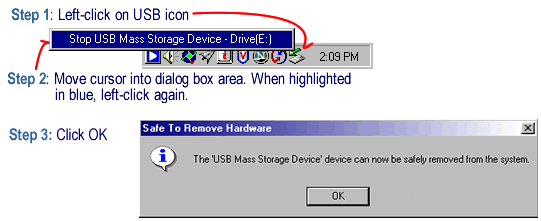
Here's one way to remove your drive. (click for larger image)
Alternately you can:
- Open My Computer.
- Right-click the correct drive for the device and select Eject (or click Eject from the Windows pane).
- It is now safe to remove your thumb drive.
This is demonstrated in Figure B.
FIGURE B
Simply eject your drive
If you're using a later version of Windows, try this:
- Right click the thumb drive icon on your taskbar.
- Right above that, a "safely remove hardware" message appears.
- In the dialog box that appears, click stop.
- Then click OK in the second dialog box.
- You'll see a "safe to remove" hardware message.
You can see this demonstrated in Figure C.
FIGURE C
Safely remove your drive.
Remove the thumb drive once you see the "Safe to remove hardware" message, as shown in Figure D.
FIGURE D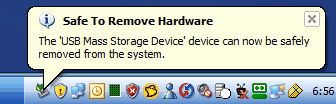
It's safe to remove your hardware.
How to travel safely with your thumb drive
Due to security measures everyone and their luggage now have to pass through X-ray machines of some sort.
Although there have been no reported cases (at least from my research) of damage to thumb drives due to radiation, it is still a good idea to carry thumb drives in carry-on bags since the radiation level is much less than it is for luggage.
Inserting thumb drive into USB connectors
Remember that the thumb drive can only be inserted in one direction; if you are having difficulty inserting, stop and try the opposite direction. Trying to force the connector into the USB port ends up damaging both the connector and the port.
Installing antivirus and anti-spyware software on your thumb drive is also a good idea. You may need to use your thumb drive from PC to PC and you cannot guarantee the level of protection that exists on another person's PC. Your best bet for protection is to protect yourself, in this case, your thumb drive.
Yes, it is possible to protect your thumb drive and we will cover that in another article. If you're curious, for now, be sure to take a look at ClamWin Portable, an antivirus program that runs right off your thumb drive.
Also, when reinserting your thumb drive in your own PC, be sure to run a virus check on it before using anything from the drive.
U3, the good, the bad, the removal
Serious computer users may also know that a companion to the thumb drive is the U3 smart drive, the portable software drive. U3 lets you run software straight off your drive.
Like the regular thumb drive the U3 is great for data storage as well. It is also possible to remove U3 components from a U3 drive and Voila!, you have a plain thumb drive -- although why anyone would want to do this is beyond me. [Many of us find the loading and unloading of the U3 data to be annoying when simply storing information is good enough. -- Ed.]
To remove U3 from your drive, you need to use a U3 launch pad uninstaller. For instructions, visit http://www.u3.com/uninstall.
Finally, despite how strong these handy storage devices are, do not depend on them alone as storage for your files. Be sure to backup your data elsewhere for safety's sake.
Final tidbit: Avoid dropping your thumb drive on hard surfaces as this can damage the device.