
By Chuck Lee
We started with an Olympus 4040 about seven or eight years ago, then purchased a Panasonic DMC-FZ30 about two years ago. My wife is our local church photographer and we needed to find a camera capable of taking good pictures in low light conditions without flash.
"I've become quite the RAW freak."
Back in February or March 2006, I happened to see the press release for the Pentax *ist DL in my Connected Photographer newsletter and began to investigate 6.1 megapixel digital SLRs. The 3200 ISO sensitivity was impressive for the price and it appeared we had found our next camera. Without a doubt, Pentax' naming convention, using "*ist" in a product name, is one of the strangest I've encountered. But the products aren't bad.
After late nights at Steve's DigiCams, Digital Photography Review, and others, I happened across an *ist DS on clearance at Ritz. I scooped it up.
After 30 days, about 1,500 photos, and several more trips to Steve's site for photo comparisons, I traded it in and traded up to the Pentax K100D. We're spoiled from the image stabilization on the Panasonic and who wouldn't like another two stops for low light photography, both of which the K100D provides?
So, since September we've been sport'n the K100D with a 28-75 F2.8 Tamron lens, capturing all the indoor action at our local church. There have been a lot of other home and work-based shoots as well. My wife loves pictures and I enjoy developing them.
In testing out the *ist DS, I've become quite the RAW freak. Now with the K100D's enhanced color and stabilization, my mission since getting it has been to find the best digital RAW conversion solution available for our new DSLR -- and for our old Panasonic FZ30 as well. The Pentax is awesome but the Panasonic is still a great all around camera for outdoor shooting.
We still love using that old Panasonic and we both had cameras at the state fair this year. Boy, we had a lot of pictures to process!! Oh, I forgot to add that we're still using the Olympus. Not as much, but it hasn't gathered any dust and it still takes great pictures!! Almost as good as my six year old's Nikon Coolpix! Sounds a little camera crazy doesn't it?
So now that you know about our cameras, let's go over at the RAW processing solutions I examined.
I've run the trial of Bibble 4.9, so I will do my best to sum up my RAW conversion digital workflow findings. I downloaded and used the SILKYPIX beta for 3-4 weeks and now I'm using the 30 day trial of the newly released version. I'm watching the exchange of Japanese Yen vs. US dollars and will purchase SILKYPIX within the next month. The more I use it the more I like it.
Picasa 2
I know Connected Photographer has written about Picasa before. But there's never been any coverage about it in terms of RAW image processing. That's what I'm covering here.
Picasa 2, shown in Figure A, is free. For the armchair photographer and desktop challenged, it is the best digital software workflow solution on the planet. For my use, it converts RAW data from my two camera types, Panasonic FZ30 and Pentax K100D.
FIGURE A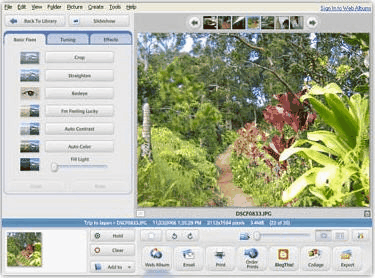
Picasa is a nice, free program. (click for larger image)
Picasa 2 does a great job with *ist DS .pef format (which is one of Pentax' native RAW formats). Even though I traded in the *ist after 30 days for K100D, I still have a pile of pictures from the *ist I want to process.
Sadly, though, now the K100D raws come in way undersaturated. I'm sure Google's next release of Picasa will fix this. That program never ceases to amaze me. Some "big name" RAW/workflow programs do not even read the K100D .pef yet (BREEZE and ACD come to mind).
Pros for Picasa
Picasa has a super-simple interface that gives you good, restricted control over post processing. Most adjustments are like fine tunings rather than obnoxious wide-range adjustments found in Photoshop and like image editors.
Picasa was made specifically for people who do not have a clue what Photoshop does nor want to or have the time to learn that kind of complex software. Plus, page setup for printing is the best batch printing interface I've used.
Picasa isn't destructive to original files. All edits are saved in one directory's ini file that Picasa uses to display, print and export images. It's the most streamlined way of handling non-destructive edits. This approach also eliminates full size copy revisions, which saves a ton of hard drive space.
Picasa 2 can also create photo CDs and online albums, has very good fill light adjustment for Gamma gain, and has clean, smooth display of image previews. And, did I mention it was FREE?!!
Cons for Picasa, at least for the high-end amateur
On the down side, I found file organization is confusing for the desktop challenged. Internal folder organization does not reflect local drive organization. I prefer managing my local folders myself. There, again, it is a "no-brainer" photo organizing interface.
Picasa doesn't have an Exif (Exchange Image File Format) for processed RAWs. Exif is unique because it allows you to embed metadata inside the RAW files. I bet you didn't know that the official abbreviation is Exif, not EXIF. It's true. Then again, most people using Picasa are going to shoot in JPEG anyway.
Other Picasa negatives are a lack of noise reduction and no highlight recover for overexposed images. Finally, you can't copy and paste edit parameters from one image to another.
Bibble 4.9
Bibble, shown in Figure B, is a professional workflow and RAW conversion program. It comes in two versions, a $129.95 pro version and a $69.96 lite version. The pro version can work as a Photoshop plug-in, adds speed enhancements, advanced copy and paste of image settings, and more. I tried the trial version of Bibble and found some definite pros -- and cons.
FIGURE B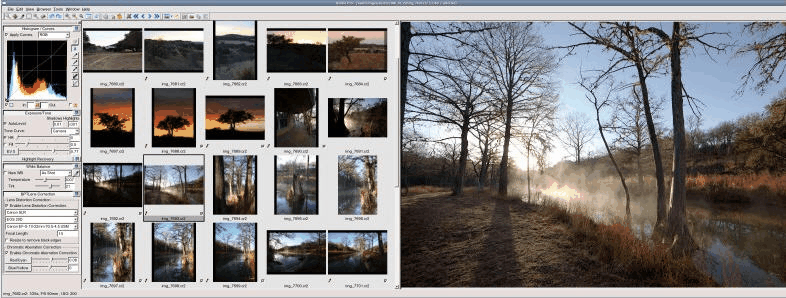
Don't quibble about Bibble. (click for larger image)
Pros for Bibble 4.9
I was most impressed, at first. Especially after clunking along with Pentax Photo Browser and Laboratory v3.0. I was amazed to find out that Pentax Photo Browser and Laboratory is powered by SILKYPIX. I would of never have guessed.
Bibble has very fast raw processing. It's non-destructive to original files. All edits are saved in a process file per image that Bibble uses to display, print and export images. The location of these parameter files is fully customizable (i.e., subfolder, same folder, My Documents, and so forth).
Bibble has professional workflow with all the color, tone, and sharpness bells and whistles, noise reduction, and good color control, white balance, etc.
It was nice to see that it supports my Pentax K100D .pef files. Unlike Picasa, Bibble supports copy and paste of image parameters for fast workflow. You can also pick your RAW interpolation mode, if you care about such things. I think most are AHD (Adaptive Homogeneity-Directed) positive now.
Cons for Bibble 4.9
Bibble's vaunted Perfectly Clear feature is not perfect. It works sort of like the "I'm feeling lucky" button in Picasa. Perfect though it may not be, it's still an excellent "gotta get it done in a crunch" enhancement and adjustment tool.
Highlight recovery leaves me wondering. Bibble grays out the highlights and doesn't really recover detail like I'd expect. It puts emphasis on the subjective.
Bibble has a crazy interface which is most challenging to customize. I want my file manager on the left, scrolled thumbnails across top or bottom, the image viewer as large as possible with Exif, exp, ISO, dist, bias information displayed conveniently during image preview.
This information could be in the title bar or border bar somewhere. I don't need camera info, lens info, and all the other superfluous fields that take up screen space. If I worked with the interface more, I'm sure it's capable of doing most or all the things that I want. It just doesn't need to be so hard to get there.
The SGI-style skin is close but not quite dark enough overall. I think that's the right style. Picasa does Windows white. It's ok but I prefer darkroom gray and black when doing those eye-reddening, critical post-processing adjustments.
Print output arrangement in Bibble falls short. Bibble does not evenly space multiple images for batch printing. Two 5x7 photos on an 8.5x11 piece of photo paper should have a gap between the images.
That's another one of those personal peeves that really doesn't hinder the final product as much as just illustrates that the authors didn't seem put very much time or effort into certain parts of the process. Instead, I print with Picasa.
Bibble's noise-reduction technology is called Noise Ninja. Noise Ninja's OK but I prefer Neat Image. Basic Ninja controls don't do a clean enough job and I would have to add Noise Ninja Pro to get the control I get with Neat Image for free. For 90% JPEG quality output, the Neat Image demo package is the bee's knees!!
Finally, in Bibble, highlight color casting has been an issue as well, as I've seen some real jagged edge interpolation, although I really didn't have a chance to truly investigate in-depth.
SILKYPIX 3.0
SILKYPIX, shown in Figure C, is another RAW development studio, this time from Japan. Interestingly, if you're going to order it, you need to do so by paying in Yen. Their Web site doesn't offer any currency conversion -- they want their payment in net Yen. SILKYPIX 3.0 is 16,000 Yen, which is about $136 dollars as of the date this article was published.
FIGURE C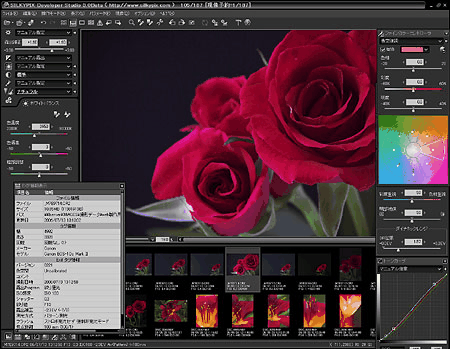
SILKYPIX may be the best solution, yet. (click for larger image)
So, is it worth going through all the hassles for currency conversion? I think it just might be.
Pros for SILKYPIX 3.0
SILKYPIX has a free Windows version that leaves out the RAW processing. Even so, the free JEPG/TIFF processor gives Picasa a run for the money. Hey, it's free. What money?
SILKYPIX has the best interface of any workflow program to date. It's dark, like a darkroom should be. It's also very well arranged and completely customizable, though I haven't changed anything. I'd go back and arrange Bibble the same way just to compare, if the trial hadn't run out.
Control galore!! The more I delve, the cooler this program gets and the better my output gets. Visit the SILKYPIX function list to get details on all the different features.
For noise reduction, check out the False Color control. It gets the job done in low light, high ISO photos. 1600-3200 ISO Pentax .pefs are usually stippled in blue and red.
SILKYPIX is clearly professional workflow software with all the contrast, tone, sharpness, and fine tuning adjustment you'd ever want or need. Plus, it's non-destructive to original files and has the best color control, white balance, etc.
You can copy and paste image parameters for fast workflow as well as use a customizable paste list to copy only what you need. And I was happy to see it had support for for K100D .pefs and had dynamic range support for the Fuji S3 Pro. I'm going to research this camera for doing high dynamic range imaging panos via laptop acquisition. That's a whole 'nother book of stuff I'm playing wiff!
Con's for SILKYPIX 3.0
SILKYPIX is non-destructive to original files but creates two parameter files per image in a subdirectory under the RAW directory. There does not appear to be a setting for customizing this location or even setting the subfolder name.
Forget printing except for singles and contact sheets. SILKYPIX has measurements in milimeters rather than inches and it doesn't have any image size presets. Use Picasa. It's free.
SILKYPIX instructions are translated from Japanese. This can be confusing at times, but it's very learnable. You don't "save", you "develop". The documentation often uses reversed nouns and verbs, and there are other fun instances of poor translation throughout the program and manual.
Despite the translation errors, I'm impressed. I've always owned Toyotas, so I'm already biased. Plain and simple, those folks over there make great products! Finally, there doesn't appear to be any US distribution. You'll have to convert the 16,000 Yen to dollars and order direct. Order now, because the Yen is gaining strength.
Conclusions
I've been developing my digital workflow for about four months. RAW conversion is the best way to get the best output, period. I have looked at a lot of RAW conversion solutions, both commercial and free.
Bibble and SILKYPIX both produce high quality JPEG output from Pentax and Panasonic RAW input. Either is a better choice for me than Adobe RAW/PS E4-5 or the Pentax boxed software (the stuff that comes with the camera).
To me, SILKYPIX had a better interface, more control, and better final output quality than Bibble. The only thing I find that is still lacking in the two professional packages tested is the ability to easily print photos.
I guess that is why I included Picasa in my comparison. If it doesn't yet, the world needs to know about Picasa. If Bibble and SILKYPIX could add Picasa-like printing to the rear end of their digital workflow, I would not need Picasa. Of course, my wife would, because it's great for her. I develop, she arranges, stylizes, and compiles.
So, for now, I think SILKYPIX 3.0 offers the very best RAW conversion, workflow solution for me. It might, for you, too.
Chuck Lee is president of PartSense, Inc., a contract service that specializes in helping the engineering community leverage the power of advanced 3D modeling and drafting software while providing cost-effective and well-engineered electro/mechanical design solutions.